> For the complete documentation index, see [llms.txt](https://docs.jmapcloud.io/llms.txt). Markdown versions of documentation pages are available by appending `.md` to page URLs; this page is available as [Markdown](https://docs.jmapcloud.io/en/jmap-ng/jmap-ng-user-guide/data/data-layers/displaying-layers.md).
# Displaying layers
You can select which layers to display on the map. For a layer to appear, you must first enable the display of the group and subgroups that contain it.
1. **Enable the group**: Toggle the group card's switch to the on position .
\
**Note:** If a group's display is disabled, its layers will not appear, even if the subgroup's display is enabled. Example: If the ENVIRONMENT group's display is disabled, even if the Ecological Interest subgroup's display is enabled, the group's layers will not appear.\
This icon appears when a layer's display is disabled. Example: Road network.
2. **Enable the layer**: Click to enable its display. The hidden icon disappears and the layer appears on the map.
3. **Disable the display**: Hover over the layer card and click .
## Display Based on Scale
Some layers are configured to display only within a given scale range. Displaying very numerous and small features at a small scale (distant view of a large area) can reduce map readability.
Layers that do not display due to the scale show their name and symbol in a very pale color. When you change the scale, the colors darken, indicating that the layer is displayed (if its display is enabled).

 .
.
 icon appears when a layer's display is disabled. Example: Road network.
2. **Enable the layer**: Click
icon appears when a layer's display is disabled. Example: Road network.
2. **Enable the layer**: Click 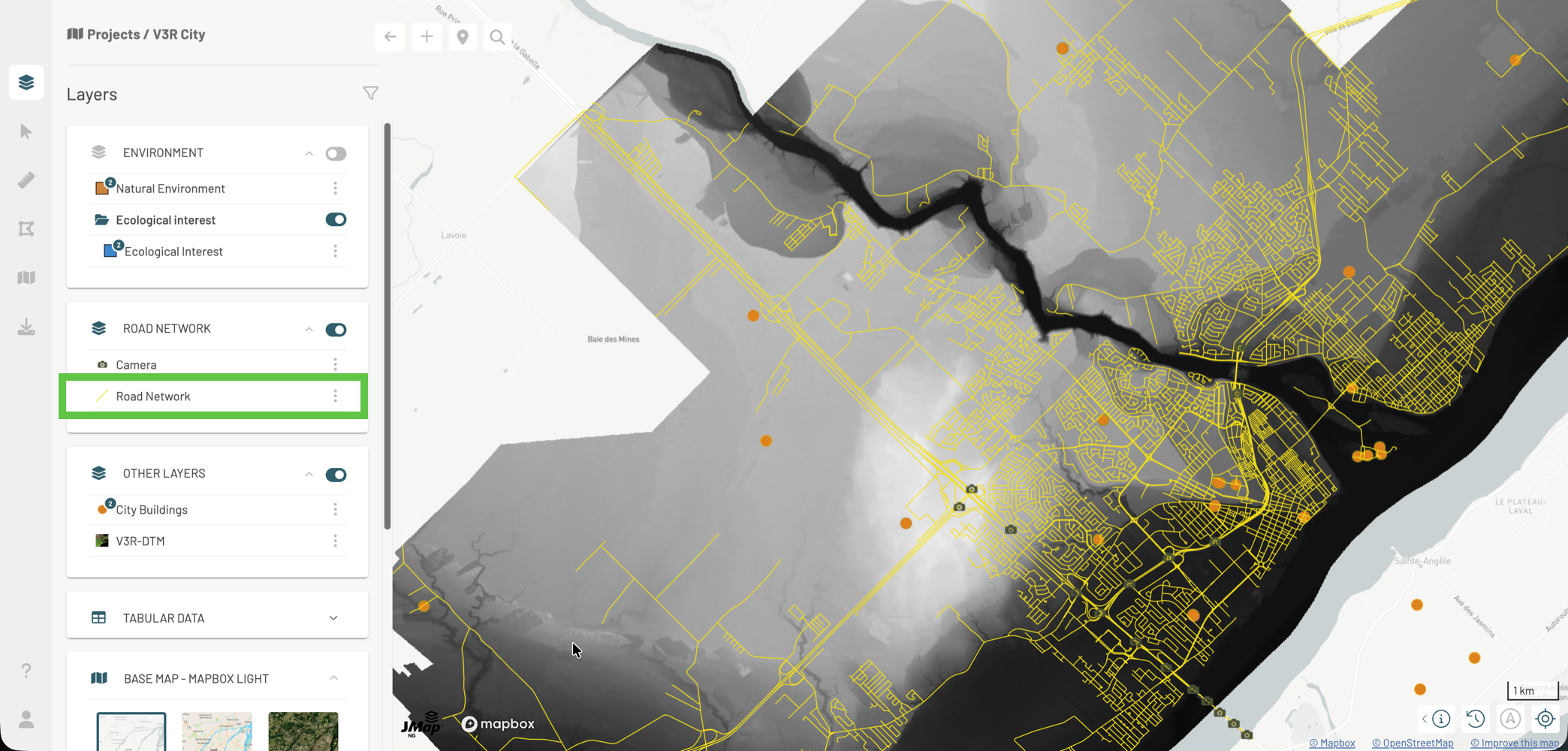
 .
## Display Based on Scale
Some layers are configured to display only within a given scale range. Displaying very numerous and small features at a small scale (distant view of a large area) can reduce map readability.
Layers that do not display due to the scale show their name and symbol in a very pale color. When you change the scale, the colors darken, indicating that the layer is displayed (if its display is enabled).
.
## Display Based on Scale
Some layers are configured to display only within a given scale range. Displaying very numerous and small features at a small scale (distant view of a large area) can reduce map readability.
Layers that do not display due to the scale show their name and symbol in a very pale color. When you change the scale, the colors darken, indicating that the layer is displayed (if its display is enabled).
