> For the complete documentation index, see [llms.txt](https://docs.jmapcloud.io/llms.txt). Markdown versions of documentation pages are available by appending `.md` to page URLs; this page is available as [Markdown](https://docs.jmapcloud.io/en/jmap-ng/jmap-ng-developer-documentation.md).
# JMap NG Developer Documentation
This manual is for developers who want to use JMap Cloud NG to create map visualization applications for the web, integrate mapping capabilities into their own web applications, or extend existing JMap Cloud NG tools.
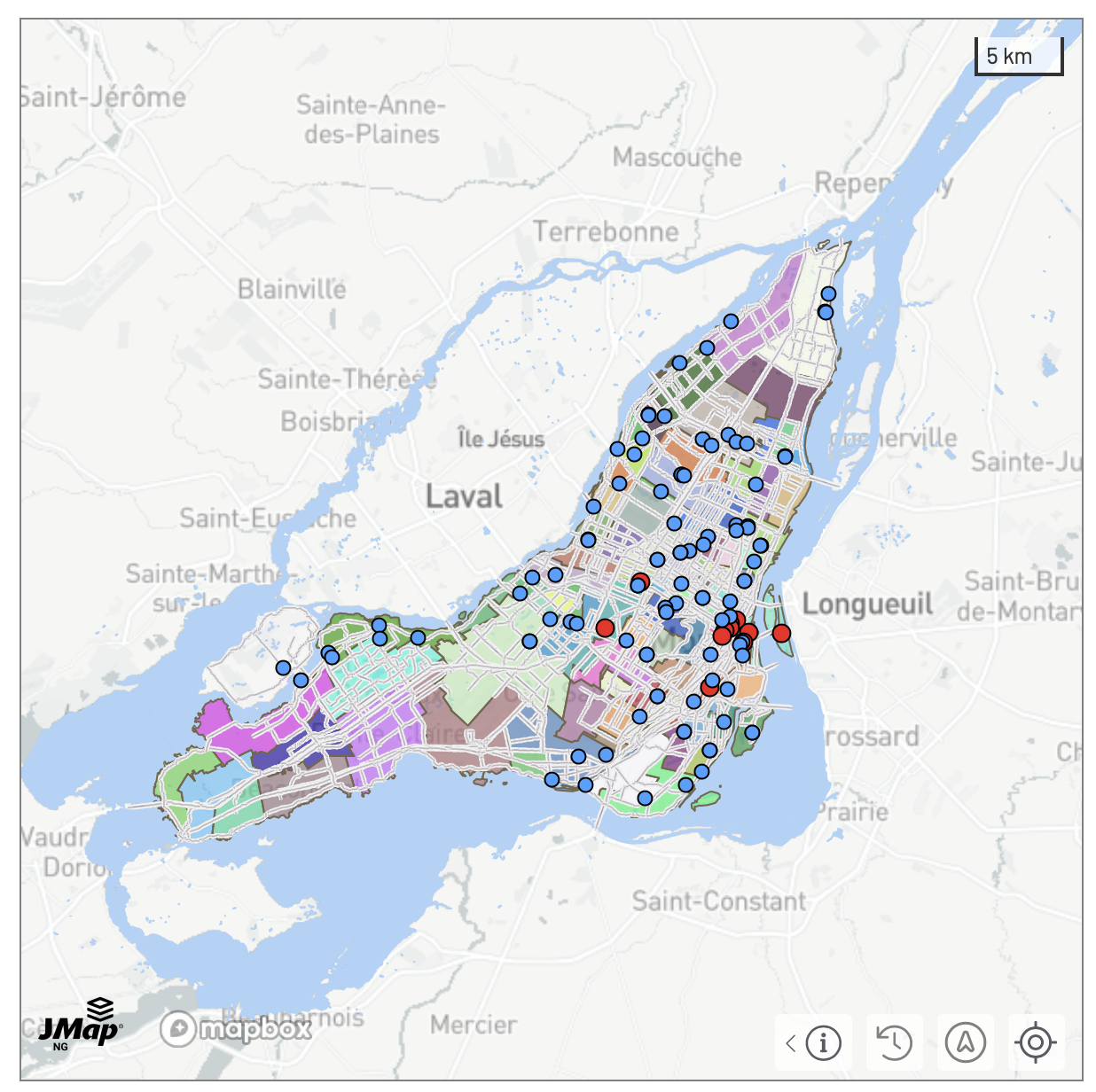
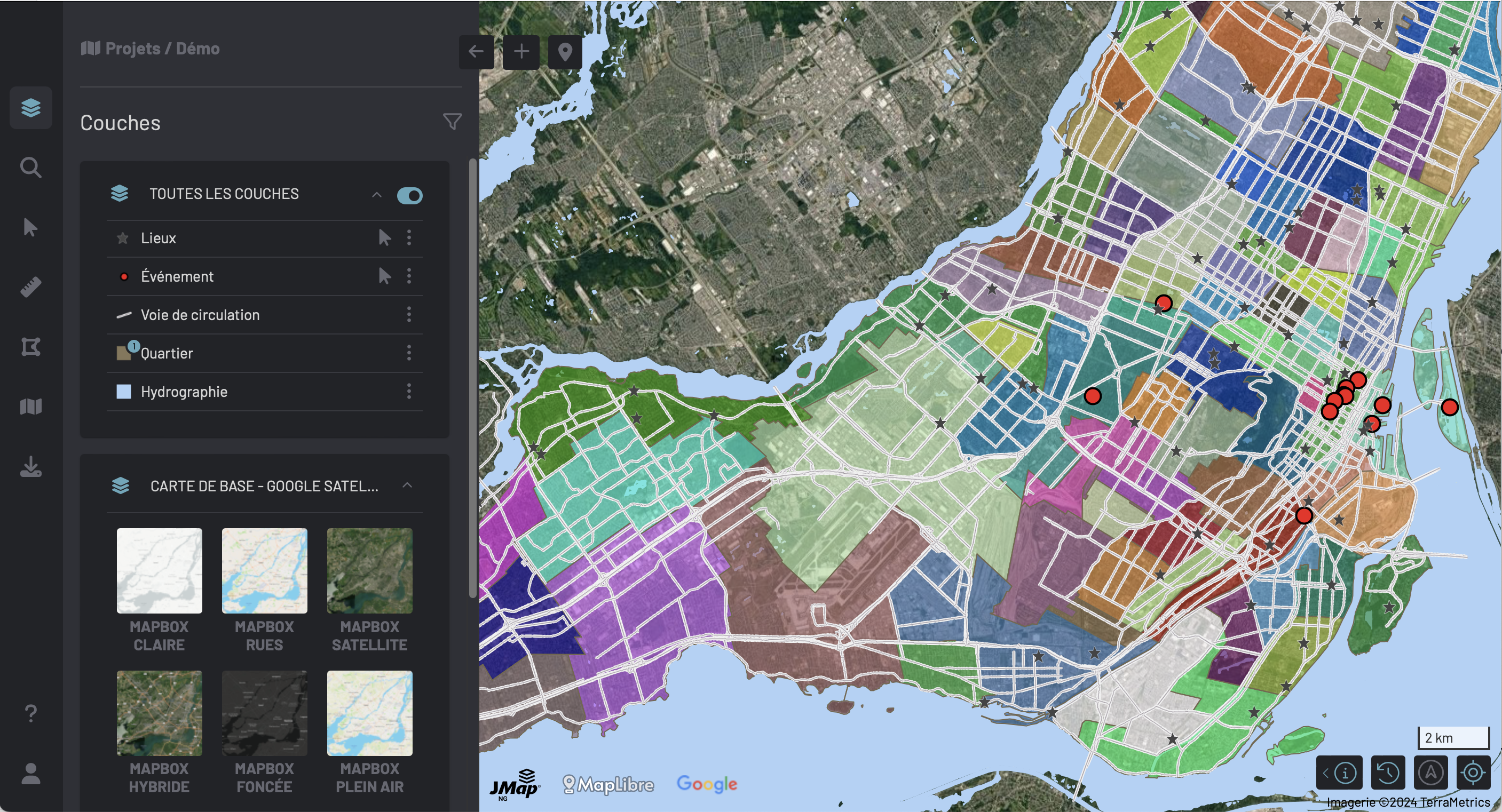
JMap Cloud NG can be embedded in two UI modes, depending on how much of the built-in interface you want to use.
### Minimal UI
Use the minimal UI mode when you want to integrate a JMap Cloud map into your own web application and build your own user interface around it.
In this mode, JMap Cloud NG loads the map and exposes its JavaScript [API](https://k2geospatial.github.io/jmapcloud-frontend/jmapcloud-ng-types/latest/modules/JMap_Cloud_NG_Core___API.JMap.html), while avoiding the full JMap Cloud NG application interface. This is the recommended mode for custom web applications that need mapping capabilities but already provide their own layout, navigation, panels, or business workflows.
Minimal UI mode is enabled with the `ui` startup option:
```html
```
### Full UI
Use the full UI mode when you want a complete ready-to-use JMap Cloud NG application.
In this mode, JMap Cloud NG loads the full interface, including the map, panels, and built-in tools such as layer management, selection, measuring, editing, or exporting. It can still be customized through startup options and extended with JMap Cloud NG extensions.
When using the full UI mode, its javascript API is available under [JMap.Application](https://k2geospatial.github.io/jmapcloud-frontend/jmapcloud-ng-types/latest/modules/JMap_Cloud_NG___API.JMap.Application.html)
Full UI is the default mode. It can also be set explicitly:
```html
```
### Choosing a mode
Choose `ui: "minimal"` when your application provides its own interface and only needs JMap Cloud NG mapping and API capabilities.
Choose `ui: "full"` when you want to embed or launch the complete JMap Cloud NG application experience.
Both modes use the same `jmapcloud-ng` package and the same startup options mechanism.
### API documentation
Release notes and API documentation is available [here](https://k2geospatial.github.io/jmapcloud-frontend/jmapcloud-ng/).
The latest version of the JMap Cloud NG Javascript API documentation is available [here](https://k2geospatial.github.io/jmapcloud-frontend/jmapcloud-ng-types/latest/index.html).